Google Translate can get the job done for manga, but the process is slow and clunky. Here is the full breakdown, plus what most readers switch to once they try it.
Google Translate is the first tool most people reach for when they want to read untranslated manga. It is free, it is everywhere, and it supports over 100 languages including Japanese, Korean, and Chinese. So it makes total sense to try it first.
And honestly, it works. You can use Google Translate to read manga. This post will show you exactly how. But by the end, you will also understand why most readers who start with Google Translate end up looking for something better after a few chapters.
Let’s get into it.
Method 1: Using Google Translate’s Camera or Image Feature
Google Translate has an image translation feature that lets you upload a photo and get the text translated. On mobile, you can also point your camera directly at text and see a live translation overlay. Here is how to use it for manga:
- Open the manga page you want to translate on your phone or take a screenshot.
- Open the Google Translate app.
- Tap the camera icon and select your screenshot, or use the live camera and point it at the page.
- Set the source language to Japanese, Korean, or Chinese depending on your manga.
- Tap the scan button and Google Translate will highlight and translate the text it detects.
- Repeat for every panel and every page.
It works. The translation quality is decent for basic dialogue. The problem is step 6. You have to do this manually for every single panel, on every single page, of every single chapter. A typical manhwa chapter has 60 to 80 panels. That is a lot of screenshots.
Method 2: Using Google Translate on Desktop via Browser
On desktop, you have another option. Google Chrome has a built-in page translation feature that can translate entire web pages. But here is the catch with manga: most manga and manhwa pages are image-based, not text-based. The page translation feature only translates actual HTML text on the page, not text that is embedded inside images.
So right-clicking a manga page and selecting Translate to English will translate the site navigation and any captions, but the speech bubbles inside the manga panels will stay in Korean or Japanese.
To work around this on desktop, you would need to:
- Take a screenshot of each panel.
- Go to translate.google.com and click the Images tab.
- Upload the screenshot.
- Read the translation, then go back and do the next panel.
Again, it works. But you are constantly jumping between your manga page and Google Translate, uploading screenshots one at a time. The reading experience completely falls apart.
Where Google Translate Struggles With Manga Specifically
Even setting aside the workflow problem, Google Translate has some specific limitations when it comes to manga text that are worth knowing about.
Curved and stylized text
Manga speech bubbles often have text that curves, tilts, or follows the shape of the bubble. Google Translate’s OCR is trained mostly on straight printed text and struggles to accurately read stylized or handwritten-style fonts, which are common in manga.
Sound effects and action text
Manga is full of large sound effect text scattered across panels. Google Translate often picks these up and translates them literally, cluttering the output with things like BOOM, CRASH, and WHOOSH rather than just the dialogue you actually care about.
No context between panels
Because you are translating one screenshot at a time, Google Translate has no context about the surrounding conversation. Manga dialogue often relies on what was said in previous panels to make sense. Panel-by-panel translation without context can produce awkward or confusing results.
The Faster Way: AI Manga Translation That Works as You Read
The core problem with using Google Translate for manga is not the translation quality. It is the workflow. You are forcing a general-purpose translation tool to do a job it was not specifically built for.
Tools built specifically for manga translation solve this differently. Instead of making you screenshot and upload panels one by one, they work directly on the page. They scan every panel automatically, detect the speech bubbles, read the text with OCR trained on manga-style fonts, and place the translation right on top of the original text as you scroll.
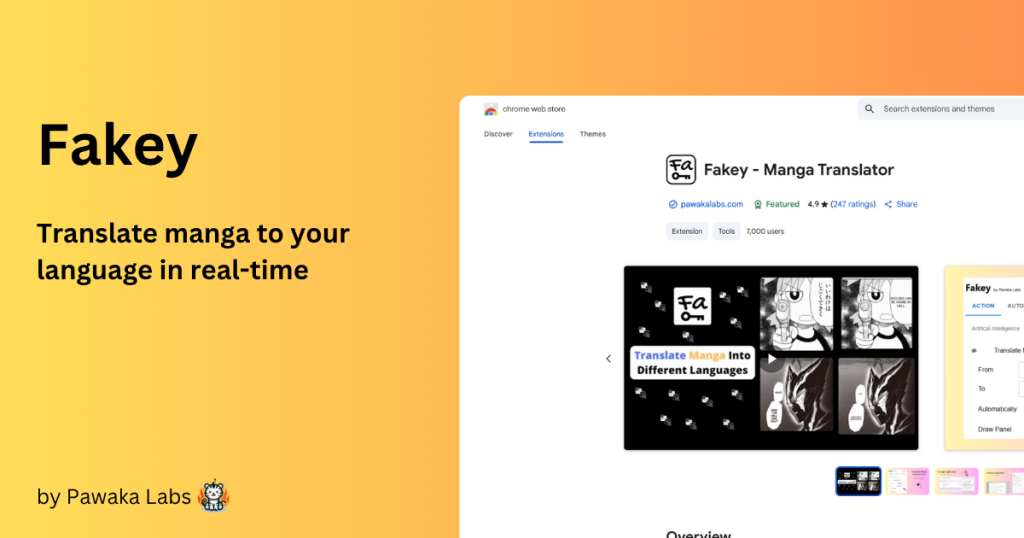
Fakey is one of these tools. It works as a browser extension on Chrome and Firefox, and as an app on Android and iOS. You open a manga or manhwa chapter, activate Fakey, and the entire page is translated automatically. No screenshots, no tab switching, no repeating the same steps for every panel.
Google Translate vs a Dedicated Manga Translator: The Real Difference
To put it simply: Google Translate is a great general tool that you can make work for manga if you are patient. A dedicated manga translator is built for this exact use case, so the experience is completely different.
With Google Translate you are doing the work manually, one panel at a time, jumping between apps, losing your reading flow constantly. With Fakey, you activate it once and just read. The translation happens automatically on every panel as you scroll down the page.
For a quick one-off translation of a single panel, Google Translate is fine. For actually reading through chapters of a series you follow, a dedicated tool saves you a significant amount of time and frustration.
How to Get Started With Fakey for Free
Fakey has a free plan with 200 credits per month, which resets on the 1st of each month. For most readers that covers a lot of chapters without spending anything. You can install it on Chrome, Firefox, Android, or iOS depending on where you prefer to read.
Once installed, the process is straightforward. Go to any manga or manhwa page, activate Fakey, and the translation loads directly on the page. Translated pages are also cached, so if you come back to re-read a chapter it loads instantly without using any credits.
If you have been using Google Translate for manga and want to see what the difference feels like, try Fakey on the next chapter of whatever you are reading. Most people do not go back.
Fakey is available on Google Play, Apple App Store, Chrome Web Store, and Firefox Add-Ons. Developed by Pawaka Labs.
Join our support channels to get the latest news.