
How to Automate Google Form Submissions Without Writing a Single Line of Code
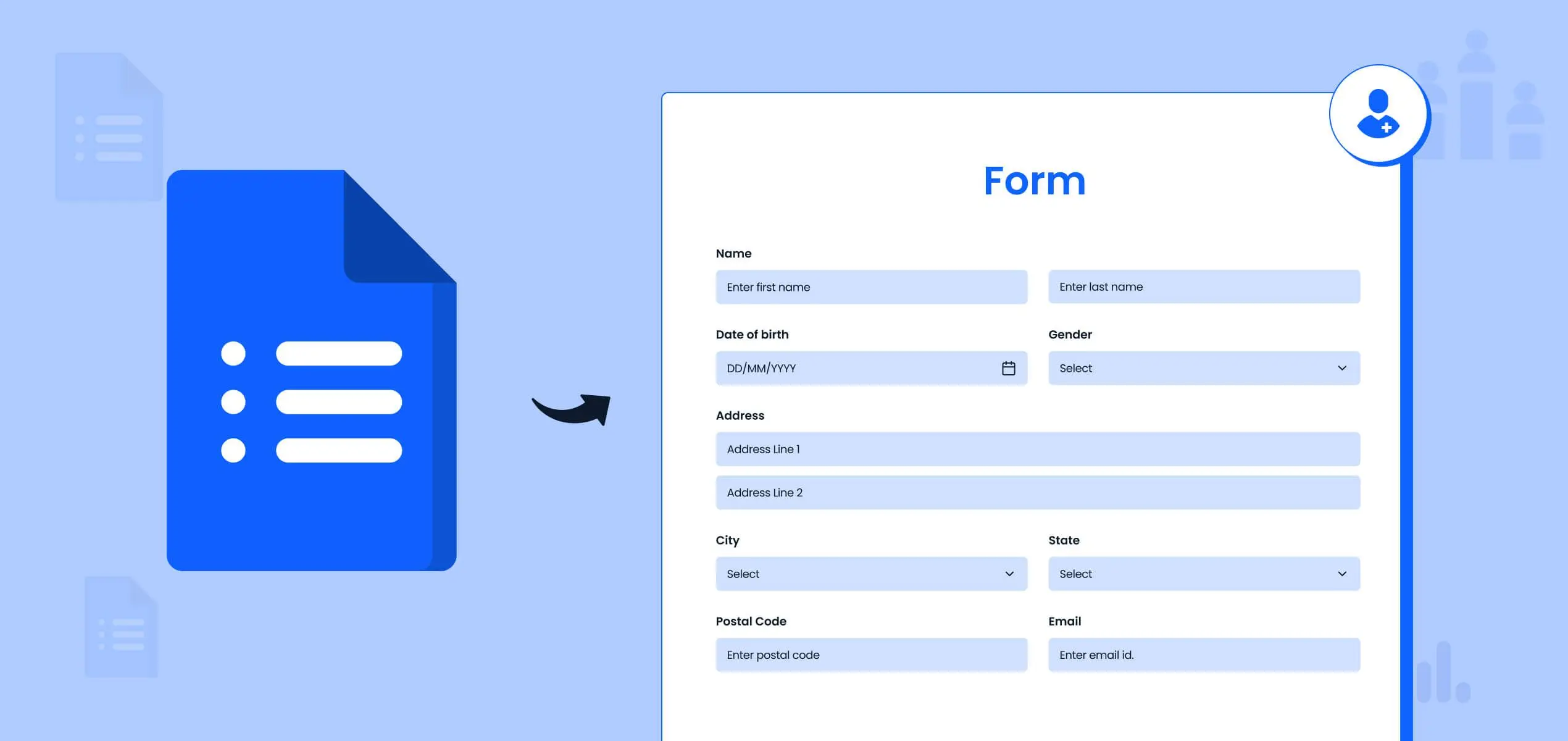
Submit Google Forms multiple times, generate dummy data and schedule responses. All from a Chrome extension.
If you have ever needed to submit a Google Form multiple times, generate test data for a survey or automate form responses without touching a script, you already know how frustrating the default options are. Google Forms doesn’t have a built-in way to do any of this. The workarounds people reach for, such as Python scripts, Selenium, or manual repetition, all take time and technical knowledge most people don’t have.
Borang is a Chrome extension that handles all of it. No code required. This post covers what it does, who it’s for, and how to set it up in under a minute.
What Is Borang
Borang is a Chrome extension built specifically for submitting Google Forms multiple times automatically. You fill the form once, set a submission count, and the extension handles the rest. It has over 40,000 active users and holds a 4.7 out of 5 star rating across more than 1,300 reviews on the Chrome Web Store.
Beyond basic multiple submissions, Borang Premium includes a randomizer, a scheduler, a CSV import for bulk answers and an AI data generator that creates realistic dummy data automatically. The full feature set covers most use cases for survey automation, QA testing, and dummy data generation without requiring any coding knowledge.
Who Uses Google Form Automation
The people who search for ways to automate Google Form responses usually fall into one of these groups:
- Students who need to hit a minimum response count for a university survey assignment
- Researchers who need to pre-populate a dataset before real respondents come in
- QA engineers and developers testing whether a form backend handles volume correctly
- Data science teams generating dummy data to build or test pipelines
- Anyone running a poll or vote who needs to boost response numbers quickly
Borang covers all of these without requiring any setup beyond installing the extension.
How to Submit a Google Form Multiple Times
This is the core feature and the most common reason people install Borang. Here is the full process:
- Install Borang from the Chrome Web Store.
- Open the Google Form you want to automate.
- Fill in the answers the way a normal respondent would.
- Click the “Submit” button.
- Enter the number of submissions you want to send.
- Click “OK” and let Borang run.
The free plan handles this with a fixed set of answers repeated across every submission. If you need the responses to vary, that’s where the Premium features come in.
How to Generate Dummy Data for Google Forms
Two Borang Premium features handle this depending on how much control you need.
The first is the Randomizer. When enabled, it varies the answers across submissions automatically so that repeated entries don’t look identical. This is useful when you want responses that appear more organic without having to prepare the data manually.
The second is the AI Data Generator. This feature creates a realistic CSV file of responses based on your form questions. You import the CSV into Borang and it uses those answers across submissions, giving you varied, believable data with no manual effort. For researchers and data science work, this removes a significant amount of prep time.
How to Schedule Google Form Submissions
The scheduler is a Borang Premium feature that lets you set submissions to run at a specific date and time. Instead of triggering the submissions manually, you configure when you want them to go out and Borang handles it automatically.
This is useful if you’re running a timed test, need responses to arrive during a specific window, or want to spread submissions out over time rather than sending them all at once. Setting a delay between submissions is also available, which makes the response pattern look more natural.
How to Import a List of Answers Into Google Forms
If you have a prepared list of answers, you can import it into Borang using a CSV file. Each row in the CSV corresponds to one submission, and each column maps to a question in your form.
This is the most precise way to control what goes into each submission. Researchers who already have a dataset they want to use, or teams running specific test scenarios, will find this more reliable than relying on the randomizer alone. The AI Data Generator can also produce the CSV for you if you don’t want to build it manually.
Free Plan vs Borang Premium
The free plan covers the core use case: submitting a Google Form multiple times with the same set of answers. It’s enough for most students and light users.
Borang Premium adds:
- Unlimited submissions with no cap
- Submission speed control
- Randomizer for varied answers across submissions
- Support for forms that require Google sign-in
- CSV import for bulk answer lists
- AI data generator for automatic dummy data creation
- Scheduler for timed or delayed submissions
The free plan is a solid starting point. Premium is worth it if you’re using Borang regularly or need data that looks natural across a large number of submissions.
Get Started
Borang is available on the Chrome Web Store and takes under a minute to install. If you have a Google Form you need to submit multiple times, automate with dummy data, or schedule, it’s the fastest way to get it done without writing any code.
Install Borang from the Chrome Web Store and run your first automated submission today.
Read more on Pawaka Blog
Keep reading
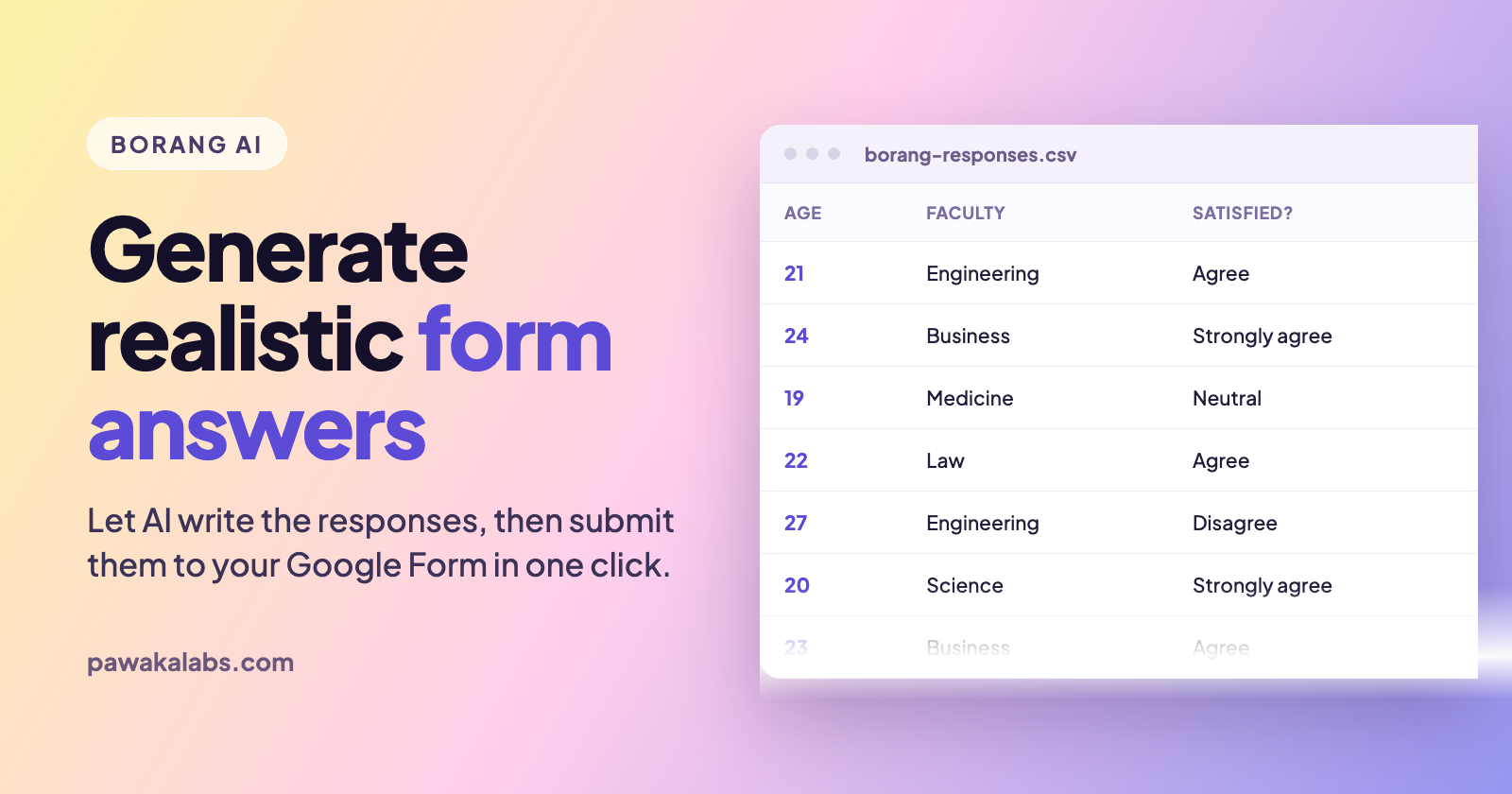
Borang AI: Generate Realistic Google Forms Answers Automatically
Borang AI writes realistic Google Forms answers for you, then submits them automatically. Here is how the AI data generator works and when to actually use it.
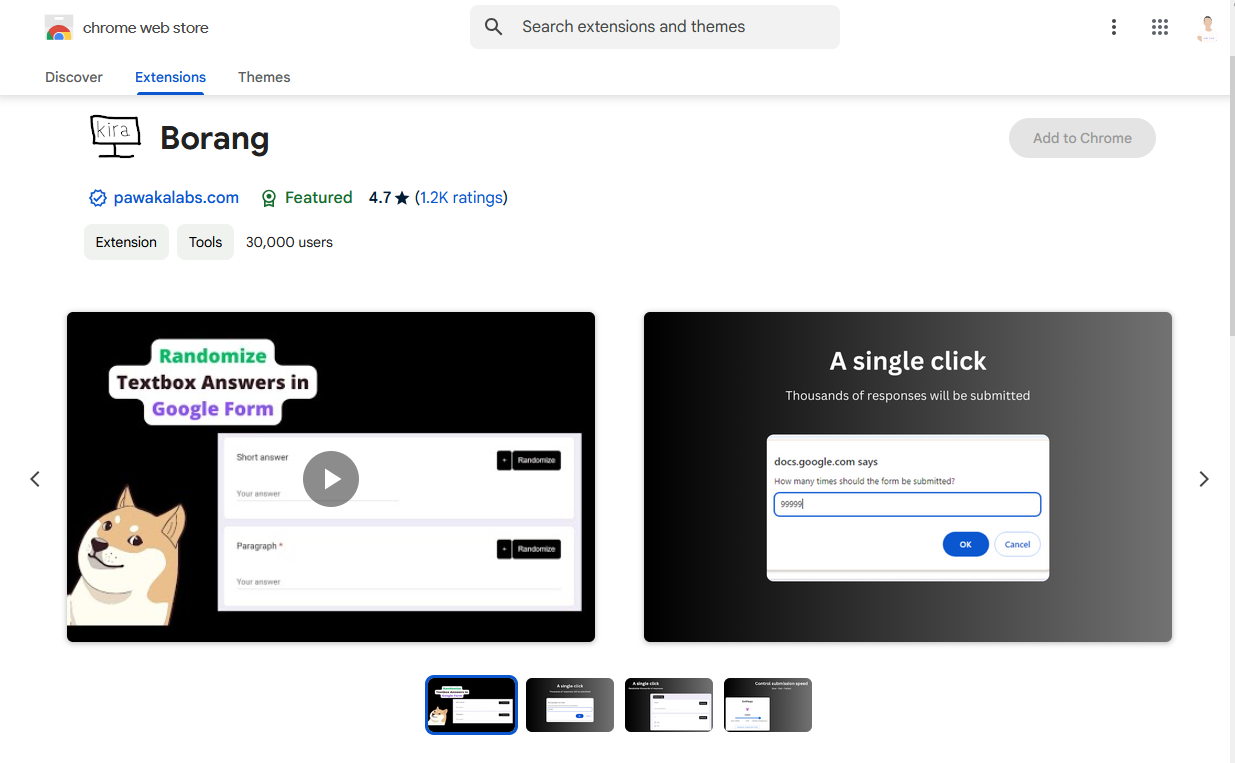
How to Submit Google Forms Multiple Times Using Borang
Stop doing it manually. There is a much faster way.
How to Spam Google Forms
This tutorial will show you how to spam Google Forms with this simple Chrome extension with only a few clicks.

How to Get Survey Responses Fast When Your Deadline Is Tomorrow
You have 11 responses. You need 50. The report is due tomorrow.

Madomi Reader Onboarding
Translate manga, manhwa, manhua and comics in real-time with AI. The only manga translator you need.