
Tachimanga Extensions and Repositories: How They Work and How to Add a Repo
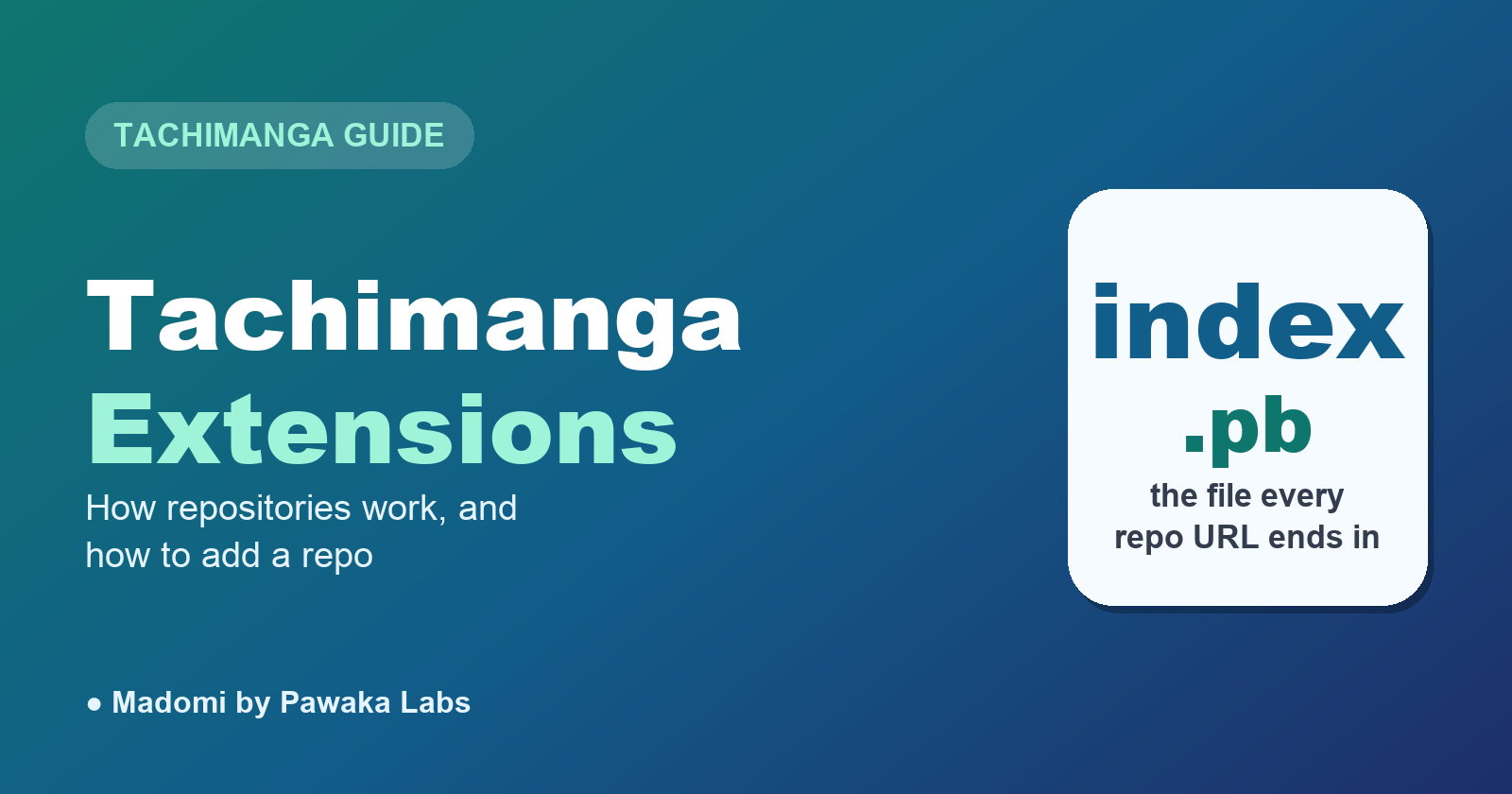
Tachimanga extensions are the sources that actually fetch manga. The app ships with none, so the first thing everyone does is add an extension repository. This guide explains what a repository is, what a valid repo URL looks like (it ends in index.pb, or index.min.json on older repos), the exact steps to add one, the fixes for “my extensions aren’t showing”, and how the same repositories work in Madomi, a source-based reader that runs on iPhone, iPad and Android.
One thing up front: we don’t list or link repositories here, and neither does Tachimanga’s own help site. Repos are community-run and change hands. If you already have one, the steps below are all you need. If you don’t, the same communities that maintain the extensions are where people find them.
What Tachimanga extensions actually are
Tachimanga is a Tachiyomi-style reader for iOS. Like Tachiyomi (and its Android successor, Mihon), it has no built-in catalogue of manga. Instead it runs small extension files, one per site, and each extension knows how to search a site, list chapters and load pages. Install an extension and a new source appears in your Browse tab.
Those extension files are the same Mihon-format .apk packages the Android apps use. That’s the whole reason the ecosystem works: the extensions are maintained by the community, and any compatible reader on any platform can install them.
An extension repository is a hosted list of those files. You give the app one URL, it downloads the index, and every extension in that index becomes installable from inside the app. No sideloading, no digging through release pages.
What a Tachimanga repository URL looks like
Every repo URL follows the same shape: a direct link to the repo’s index file. Current repos publish it in a compact binary format, so the address ends in
index.pbOlder repos, and older guides, use the JSON version instead, which ends in index.min.json. Both point at the same kind of list, and a repo that offers both usually works with either address.
The app reads that index to learn what extensions exist, their versions, and where to download each one. That leads to the two rules people trip over most:
- It has to be the raw index URL. A link to a project homepage, a README, or a folder listing won’t work. The address must end in
index.pborindex.min.json. - Copy it exactly. A trailing space, a missing character, or an auto-capitalised letter from your keyboard is the number one reason “add repo” fails.
Any repository that follows that format works, big or small, and you can add more than one.
How to add an extension repository in Tachimanga
- Open the Browse tab and switch to Extensions.
- Open the settings for that screen and find Extension Repos.
- Tap the + button in the top right.
- Paste the repository URL and tap Add.
- Go back to the Extensions list and hit refresh.
The list fills with everything the repo offers, grouped by language. Tap Install next to a source, and it shows up under Sources in Browse.
Tachimanga also lets you install a single .apk extension file directly from the same + button, which is handy if a source lives outside any repo.
Installing, updating and trusting extensions
A few habits save a lot of confusion later:
- Filter by language first. A full repo index is huge. Set your languages in the extension filter so English (or whatever you read) sits at the top.
- Watch for the update badge. Sites change their layout constantly, and extension maintainers push fixes often. When a source stops loading chapters, an update is usually already waiting.
- Uninstall what you don’t use. Every installed source is one more entry in global search. Keep it lean and searches stay fast.
- Trust prompts are normal. A newly installed extension may ask to be trusted before it loads anything. That’s the app checking the signature, not a warning about the source.
Why the Reddit threads exist: extensions not showing
Most posts titled “tachimanga extensions not working” come down to one of these:
- The repo URL didn’t take. Re-open Extension Repos and check the entry is there and ends in
index.pborindex.min.json. Delete and re-add it if it looks off. - You didn’t refresh. Adding a repo doesn’t populate the list on its own. Pull to refresh or tap the refresh icon.
- Language filter is hiding them. If the list looks empty or short, the language filter is probably set to something narrow.
- The source itself is down. If one extension installs fine but returns nothing, the target site is probably blocking or has changed. Check for an extension update, then try again later.
- Cloudflare challenge. Some sites gate requests behind a browser check. Opening the site once in the in-app web view usually clears it.
- The repo moved or shut down. Repositories come and go. If the index stops loading, the repo may have changed address; you’ll need the current URL from wherever you found the old one.
None of that is specific to Tachimanga. It’s the same short list on Mihon, and it’s the same on Madomi, because they’re all reading the same kind of repository.
The same repositories work in Madomi
This is the part most people don’t realise. Madomi is a full source-based manga reader for iPhone, iPad and Android, built on the same Mihon-compatible extension system. It isn’t a different kind of app with a different kind of catalogue. It reads any index.pb or index.min.json repository exactly the way Tachimanga does, and like Tachimanga it ships with none: you bring your own.
The flow will feel familiar:
- Open Browse, then the Extensions tab.
- Open browse settings and tap Extension repos.
- Tap Add repo, paste the same URL you use in Tachimanga, tap Add.
- Back in Extensions, install your sources. They appear under Sources with a language label.
Madomi also has Add from APK for a single extension file, so a source that isn’t in any repo still works.
What you get around that repo is a reader built for people who already know this workflow:
- Your Tachimanga library comes with you. Export a
.tmbbackup from Tachimanga and import it under Settings, Library & sources, Backup and restore. Madomi installs the sources it needs from your repos and rebuilds your library, categories, progress and tracker links. Mihon.tachibkbackups import the same way. - Five reading modes, Mihon-style tap zones, continuous scrolling between chapters, colour filters, a pure-black theme and auto scroll for webtoons.
- Library tools you expect: categories, an Updates feed for new chapters, global search across every installed source, saved filter presets, and single or bulk source migration when a source dies.
- Seven trackers (MyAnimeList, AniList, Kitsu, MangaUpdates, Shikimori, Bangumi and MangaBaka), plus a “similar manga” row on every series.
- Komga, CBZ, PDF and ZIP for your own collection.
- One account on iPhone, iPad and Android, with your library and reading position synced between them.
The reader is free, including online sources, every reading mode, Komga, categories and 20 chapter downloads a day. The one-time Madomi Reader unlock adds trackers, cross-device sync, unlimited downloads, auto scroll, read-ahead and custom themes. It’s a lifetime purchase, not a subscription, and it’s 80% off until the end of September 2026.
And yes, Madomi can translate raw chapters too, with one button in the reader. If you only read English sources you’ll never need to press it. We wrote about the switch in more detail in our Tachimanga alternative guide and in the Tachiyomi-of-iOS post, plus a round-by-round Tachimanga vs Madomi comparison.
Quick start: your Tachimanga repos in Madomi
- Get Madomi on the App Store or Google Play. Free, no sign-up wall. (The App Store listing may still show the old name, Fakey. Same app.)
- Browse, Extensions, browse settings, Extension repos, Add repo. Paste your repo URL.
- Install your sources from the Extensions tab.
- Optional: import your Tachimanga
.tmbso your library and progress carry over. - Start reading.
One format, every reader
Extension repositories are what make this whole category work, and the good news is they’re portable. The index.pb URL you add to Tachimanga is the same one you add to Mihon on Android and to Madomi on iPhone, iPad and Android. Your sources aren’t tied to one app, and with a .tmb import, neither is your library.
Read more anime and tech blogs.
Frequently Asked Questions
Does Tachimanga come with a default extension repository? No. Like Mihon, it starts with an empty Extensions list and expects you to add a repository URL yourself. The app doesn’t bundle, list or recommend any.
What does a Tachimanga repository URL look like?
A direct link to the repo’s index file, ending in index.pb (current format) or index.min.json (older JSON format). A link to a project page or a README won’t work; it has to be the raw index address.
Where do I find a Tachimanga repository URL? Not from the app, and not from this post. Repositories are run by the community that maintains the extensions, and the communities around Tachiyomi-style readers are where people share and update them. Once you have a URL, the steps above are the same for any of them.
Do I need Tachimanga Premium to add extensions? Adding repositories and installing extensions doesn’t need Premium. Premium mainly lifts the daily chapter download cap and unlocks the comfort features.
Why do my Tachimanga extensions show but load no manga? Usually the site behind that extension changed or is blocking requests. Check the Extensions tab for an update, clear any Cloudflare check by opening the site in the in-app browser, and try again. If it stays dead, migrate the series to another source.
Is Tachimanga on Windows? No. Tachimanga is an Apple-platform app for iPhone, iPad and Mac. On Windows, the usual route is Mihon on an Android emulator, or a self-hosted Suwayomi server with its web UI. If you read on a phone or tablet, Madomi covers both iOS and Android with the same extension repos.
Do Tachidesk and Tachimanga work together? They solve the same problem two different ways. Tachidesk (now called Suwayomi) is a self-hosted server that installs the extensions itself and serves manga to a browser. Tachimanga is a standalone reader that installs extensions on the device. You don’t need one for the other. If you already run a Suwayomi server, read it through its web UI. If you want extensions on your phone directly, use Tachimanga or Madomi.
Can I use the same extension repo in Madomi?
Yes. Madomi uses the same Mihon extension system, so any index.pb or index.min.json repository that works in Tachimanga works as-is. Add it under Browse, Extensions, browse settings, Extension repos.
Can I move my Tachimanga library to Madomi?
Yes. Export a .tmb backup from Tachimanga and import it in Madomi under Settings, Library & sources, Backup and restore. Sources, library, categories, progress and tracking come across.
Keep reading
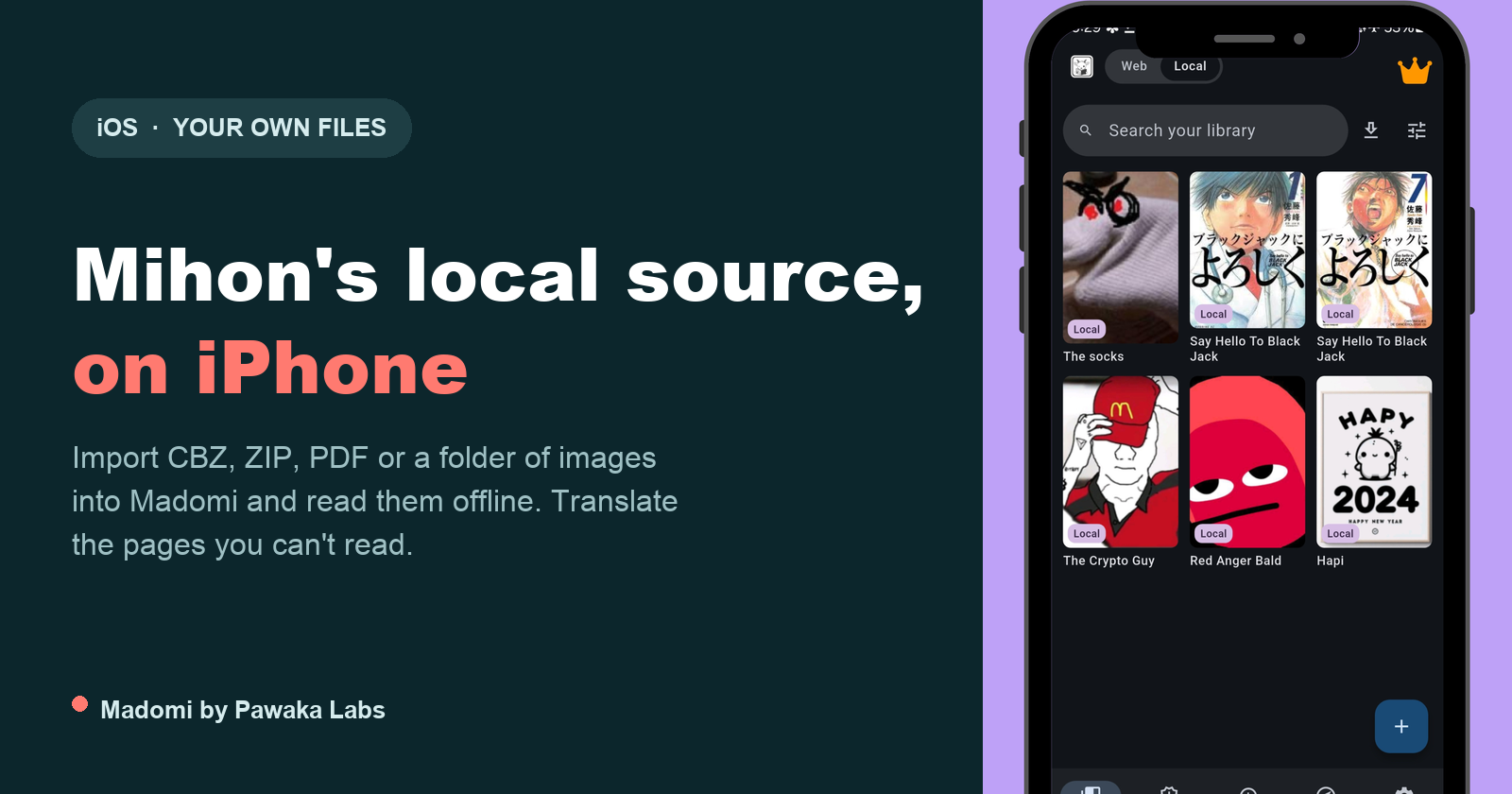
Mihon Local Source on iPhone: How to Read Your Own Manga Files on iOS
Mihon's local source is Android only. Here is how to read your own CBZ, ZIP, PDF and image folders on iPhone with Madomi, folder-is-a-series and all.
Mihon Not Notifying You of New Chapters? Six Settings That Silently Stop It (and the Fix for Each)
Mihon's new chapter notifications and automatic library updates fail quietly. Here are the six usual causes, where each setting lives, and what to change.
Is There a Mihon for iOS? No, and Any App Called Mihon on the App Store Is Fake
There is no Mihon for iOS and the team says there never will be. Any App Store app using the name is fake. Madomi is the iPhone reader that uses the same repos and .tachibk backups.
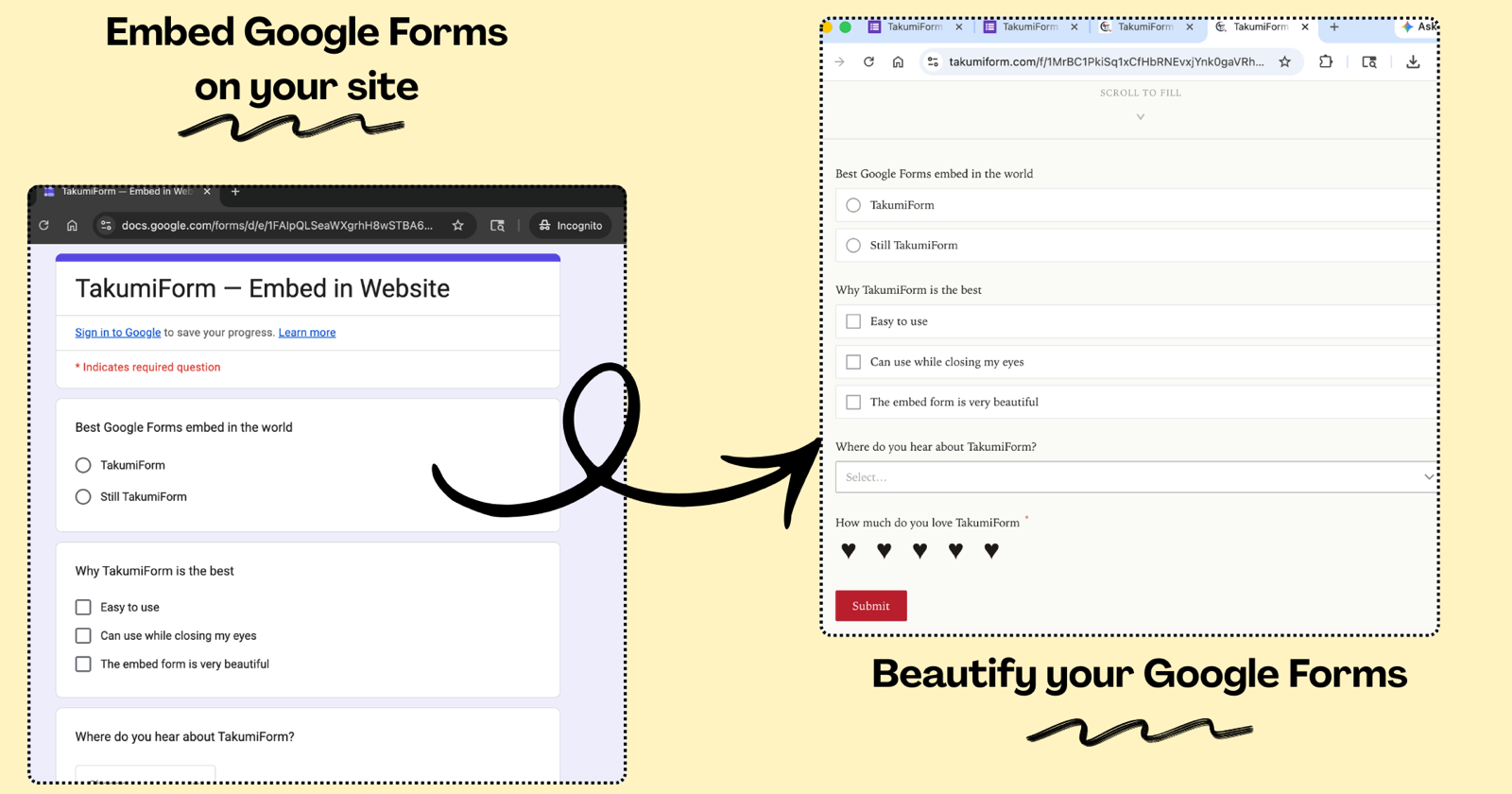
Introducing TakumiForm: Customize and Embed Your Google Forms Without the Google Look
TakumiForm is our new Google Forms add-on. Restyle a form to match your brand, embed it on any website, collect file uploads without a sign-in, and keep your Sheet.
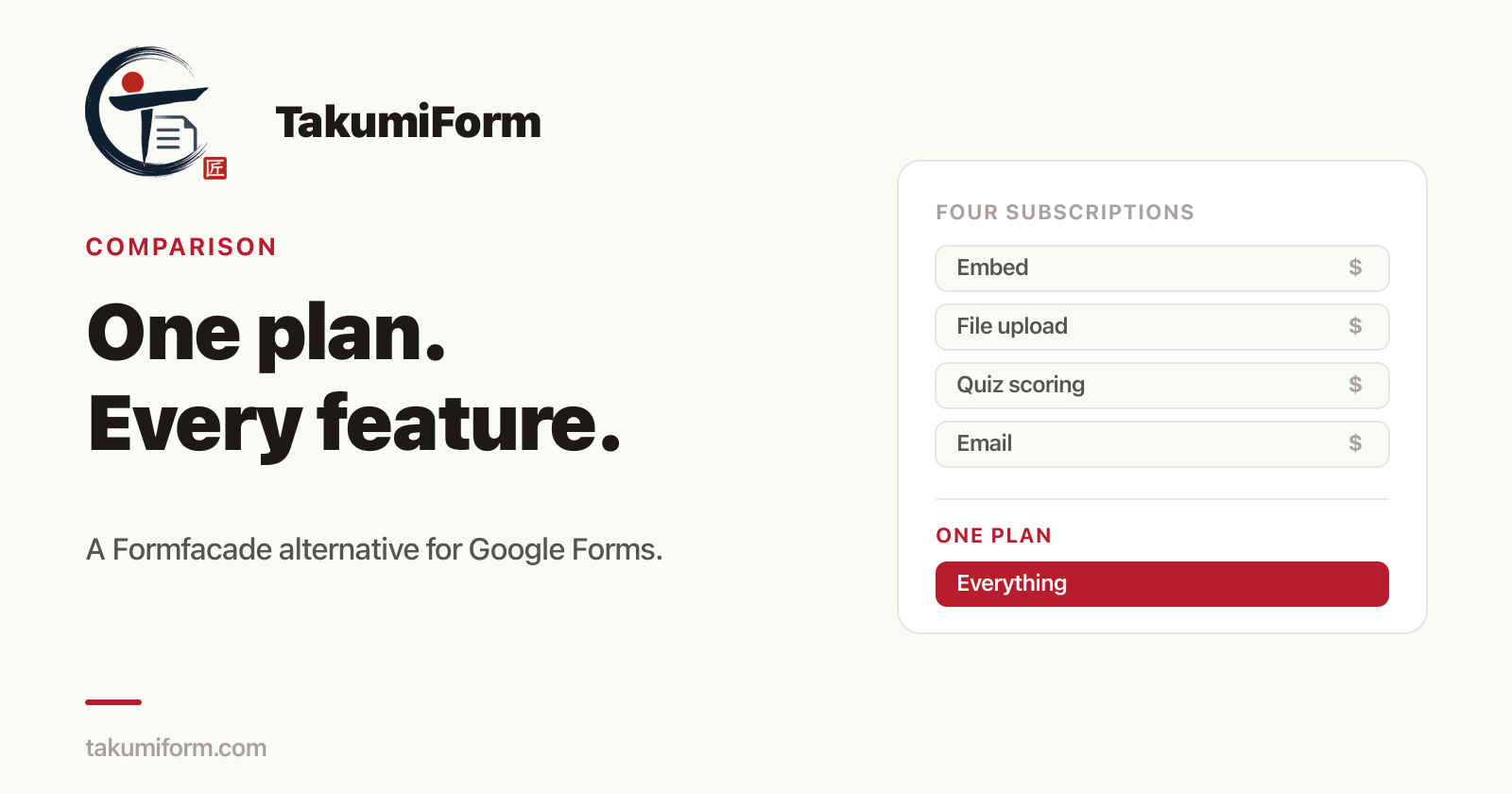
Formfacade Alternative for Google Forms: What to Use Instead in 2026
The best Formfacade alternative for Google Forms is TakumiForm: customize, embed, file upload, redirect and quiz scoring in one plan. Full comparison, updated September 2026.