
Mihon Local Source on iPhone: How to Read Your Own Manga Files on iOS
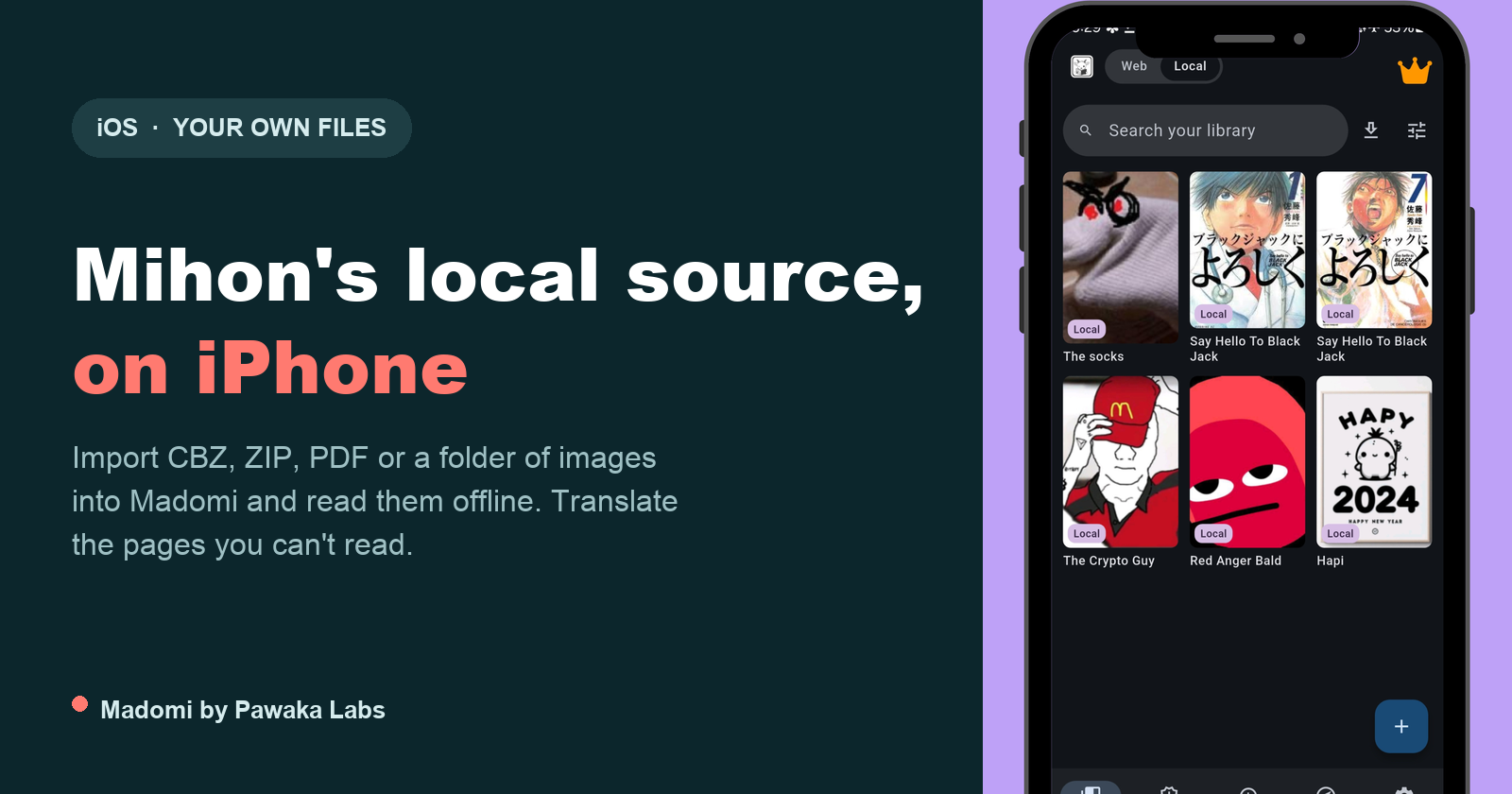
Mihon’s local source is Android only, and there is no iOS version of Mihon to run it in. The way to read your own manga files on an iPhone is Madomi, a free reader from Pawaka Labs with a Local mode built for exactly this: import a CBZ, ZIP, PDF or a folder of images, get a library of series and chapters, read it offline, and translate the pages you can’t read. Last checked on 26 October 2026.
If you came off Android, the local source is probably the feature you miss most. Everything else has some sort of replacement on iPhone. But the pile of files you already own, the volumes you bought and ripped, the scans you made yourself, the chapters you exported out of Komga, that pile just sits there looking useless on a phone that won’t let an app read a folder.
It isn’t useless. The mental model ports over almost exactly, and the app you need is a CBZ reader for iPhone that also happens to read PDFs, folders of images and ZIPs. Here’s how.
What is Mihon’s local source?
On Android, Mihon has a built-in source called Local source that reads manga off the device instead of off the internet. You drop files into a local folder in its storage directory, refresh, and they show up in your library alongside everything else.
The structure it expects looks like this:
[storage location]/local/
└── [series title]/
    ├── cover.jpg
    ├── chapter_1/
    │   ├── image_1.ext
    │   └── image_n.ext
    └── chapter_n/
The rule underneath it is simple and worth remembering, because it’s the rule that carries over to iPhone: the folder is the series, and each file or subfolder inside it is one chapter. Mihon takes a folder of images or a ZIP/CBZ archive as a chapter. Any folders inside an archive get ignored, so all the images in one archive are just the pages of that one chapter.
Is there a local source app for iPhone?
Not in Mihon, because there is no Mihon on iPhone. The team’s own FAQ says there’s no iOS or iPadOS version and no plans for one, and anything on the App Store using that name isn’t theirs. We wrote the long version of that in is there a Mihon for iOS.
What you want instead is an iPhone reader that has the same feature under a different name. In Madomi it’s Local mode: tap the Web/Local pill at the top of the app and the whole bottom bar changes to Library, History and Settings. That library is your files, sitting on the device, and it opens with no connection at all.
The one thing that genuinely can’t port is the watched folder. iOS doesn’t let an app wander the filesystem and pick up whatever you dropped in a directory, so instead of syncing files into a folder, you hand them to the app once and it keeps them. Slightly different gesture, same result.
How do I get manga files onto an iPhone?
Three routes in, and they all end in the same library.
1. Open in Madomi. Long-press a .cbz or .pdf in the Files app and pick Madomi from the Open in menu. This works from anywhere iOS offers that menu: a file you downloaded in Safari, a mail attachment, a file that arrived in iCloud Drive from your desktop. Madomi flips itself to Local mode, asks which series the file belongs to (or starts a new one), asks for a chapter name, and imports.
2. The plus button. In the Local library, tap the plus and choose Add chapter. Pick one file or several. Several files selected together get combined into a single chapter, which is what you want when a chapter arrived as thirty loose JPEGs.
3. Add manga from folder. Same plus button, second option. Pick a folder and Madomi looks inside it for chapters: every archive (.cbz, .zip, .cbr, .epub, .pdf and so on) becomes a chapter named after the file, and every subfolder containing images becomes a chapter named after the subfolder. If the series is split into volume folders with the chapters inside, it walks down into those too and names the chapters Vol 1 - Chapter 3 and so on. You get a confirmation screen listing what it found, with the series title editable, before anything commits.
That third one is the direct replacement for the Mihon layout. If you already have a Series Name/Chapter 01.cbz tree sitting in iCloud Drive or on a USB drive plugged into the phone, it imports as-is, in the right order. Chapters sort in natural order, so Chapter 2 lands before Chapter 10 instead of after it. Junk like .DS_Store, __MACOSX and AppleDouble files is skipped without you having to clean the folder first. If the files carry a ComicInfo.xml or a Mihon-style details.json, the series and chapter names come from there, and the author and description from details.json show up on the series page.
A whole series zipped into one file works too. Pick it with Add chapter and Madomi notices that it holds chapter archives or chapter folders rather than pages, and offers to import it as a series instead.
Can I read CBZ files on an iPhone?
Yes, in Madomi, and not only CBZ. The full list:
- Comic archives: CBZ, ZIP, CBR, RAR, CBT and TAR.
- Books: EPUB and PDF.
- Images, loose or inside an archive: JPEG, PNG, WebP, GIF, BMP, HEIC, HEIF and AVIF.
One catch with CBR and RAR: they need to be in the RAR 4 format, which is what most comic archives out there use. Archives made with RAR 5 aren’t supported yet (Madomi says so when you pick one, rather than failing quietly), and neither is 7z (CB7). A CBR or EPUB also has to be imported on its own, one file per chapter, rather than mixed with other files.
PDF is worth calling out. Mihon’s local source doesn’t accept PDFs at all, and a lot of what people actually own, digital volumes, scanned books, anything that came off a scanner app, is a PDF. Madomi renders each page and treats it like any other chapter, so it gets the same reading modes and the same progress tracking. There’s no separate PDF mode to learn.
One detail for anyone fussy about quality: a page that’s already a JPEG and not absurdly wide is stored with its original bytes, untouched. Importing doesn’t quietly recompress your library. Only pages that need converting (HEIC, PNG, WebP, AVIF and so on) or shrinking get re-encoded. CBR and EPUB files aren’t unpacked at all: they’re kept exactly as you gave them and read straight from the file.
So if you’re picking a CBZ reader for an iPhone: Madomi opens the formats the others open, keeps them offline, and, unlike a plain comic reader, can put your language over the Japanese, Korean or Chinese pages as you read them.
Can I read downloaded manga offline on an iPhone?
Yes, completely. The files live on the device, so the library and the reader open in airplane mode with nothing but the phone.
Once a series is in, tapping it opens the same chapter list you get for online series, and tapping a chapter opens the reader. It’s the reader an Android refugee expects:
- Five reading modes, including webtoon (the default), continuous vertical with gaps, and paged left-to-right, right-to-left and vertical.
- Pinch zoom, double-tap zoom, colour filter, brightness, grayscale, invert and keep-screen-on.
- Chapter to chapter scrolling, so you roll from the end of one chapter into the next without going back to the list.
- Long-press a page to save or share it.
- Reading statistics, free for everyone: time read, chapters finished, what you’ve been on lately.
You can also long-press in the library to multi-select and bulk delete, drag chapters into a different order if the file names lied about it, and rename anything you imported with a bad title.
The only thing in Local mode that ever needs a connection is translating a page, because that call goes to our server. Reading doesn’t.
Two reader extras sit behind the one-time Madomi Reader unlock rather than the free tier: double-page spreads in the paged modes, for volume rips laid out as two-page art, and auto scroll for hands-free reading in the continuous modes. Everything above, the importing included, is free. The unlock is 80% off until the end of September 2026 if you want them.
How do I translate manga I downloaded myself?
A local source has no answer for this, and it’s usually why the files were stuck in the first place. You bought the Japanese volumes. You have the raws. You can’t read them.
Open an imported chapter, tap Translate, pick the From and To languages, and Madomi reads the text inside every speech bubble with OCR built for manga fonts and puts your language over it. The art underneath stays untouched. Translated pages are saved beside the originals on disk, so the eye toggle in the bottom bar flips between the original page and the translated one at any time, and the chapter list shows a small JA → EN pill on chapters you’ve done (with a count, like JA → EN · 12/30, when a chapter is only partly through).
Madomi is a real-time manga translator by Pawaka Labs that works as a browser extension on Chrome and Firefox and as a native app on Android and iOS. It’s rated 4.8 out of 5 from 383 Chrome Web Store ratings with 20,000+ users, the highest-rated manga translator extension on the Chrome Web Store. Translation is available to anyone signed in: the free plan includes credits every month at 1 credit per translated image, and Madomi Premium removes the limit. If you never translate a page, you never spend a credit.
The full walkthrough for translating a file, Android included, and how it compares with Google Translate and ChatGPT, is in how to translate a manga PDF, CBZ or CBR file.
If the raws are what you’re short of, our guides to where to read raw Japanese manga and where to read raw Korean webtoons stick to official publisher platforms, the kind you can actually buy from.
Mihon local source vs Madomi Local mode
| Mihon local source | Madomi Local mode | |
|---|---|---|
| iPhone and iPad | No | Yes |
| Android | Yes | Yes |
| CBZ / ZIP | Yes | Yes |
| CBR / RAR | Yes | Yes (RAR 4) |
| CBT / TAR | Yes | Yes |
| EPUB | Yes | Yes |
| 7z / CB7 | Yes | No |
| No | Yes | |
| Folder of images as a chapter | Yes | Yes |
| Folder import (folder is a series) | Yes | Yes |
| Reads offline | Yes | Yes |
| Double-page spreads | No | Yes (Madomi Reader) |
| Translates the pages you import | No | Yes |
| Reading statistics | Yes | Yes |
Quick start
- Install Madomi on your iPhone or iPad from the App Store. It’s free.
- Get your files onto the phone, in iCloud Drive, On My iPhone, or anywhere the Files app can see them.
- Open Madomi and tap the Local side of the pill at the top.
- Tap the plus button. Choose Add manga from folder for a whole series, or Add chapter for single files.
- Confirm the series title and the chapters it found.
- Tap the series, tap a chapter, read. Set your reading mode from the bottom bar.
- If the pages are in a language you don’t read, tap Translate, pick the language pair, and go.
Frequently asked questions
What is the best CBZ reader for iPhone?
The best CBZ reader for iPhone is Madomi, a free manga reader by Pawaka Labs that opens CBZ, ZIP and PDF files as well as folders of images, stores them on the device for offline reading, and, unlike a plain comic reader, can translate the pages with AI while you read. It also imports a whole folder at once, so a series that is already split into per-chapter archives comes in as a series with chapters rather than as a pile of files.
Can I read downloaded manga offline on an iPhone?
Yes. Import the files into Madomi on iPhone or iPad and the chapters are stored on the device, so the library and the reader work in airplane mode with no connection at all. Madomi takes CBZ, CBR, ZIP, EPUB, PDF and loose images, and only translating a page needs the internet.
Is there a local source on iPhone?
Yes. The app to use is Madomi, a free manga reader for iPhone and iPad by Pawaka Labs with a Local mode that does what Mihon’s local source does on Android. You import CBZ, ZIP, PDF files or a folder of images, and they become series and chapters in a library you can read offline. Mihon itself is Android only and has no iOS version.
Does Madomi use the same folder structure as Mihon’s local source?
The same idea, yes. Pick a folder and each archive file or image subfolder inside it becomes one chapter, all under one series, which is the folder-is-a-series and file-is-a-chapter convention Mihon uses. The difference is that you import the folder once through the iOS file picker instead of dropping it into a watched directory, because iOS apps cannot read an arbitrary folder on the filesystem the way an Android app can.
Can I import a PDF into a manga reader on iPhone?
Yes, Madomi imports PDFs. Each page is rendered as an image page in the reader, so a PDF reads exactly like a CBZ with the same reading modes, zoom and progress tracking. Mihon’s local source does not take PDFs at all.
How do I get manga files into an app on iPhone?
Three ways. Long-press the file in the Files app and choose Open in Madomi, tap the plus button in the Local library and pick the files, or pick a whole folder and let Madomi split it into chapters. A file you have downloaded in Safari or received as a mail attachment can go straight in through the same Open in menu.
Can I translate a manga file I imported myself?
Yes, and that is the part a local reader normally cannot do. Open an imported chapter in Madomi, tap Translate, pick the language pair, and the text inside each speech bubble is read with OCR built for manga fonts and replaced with your language. Translated pages are saved next to the originals, so an eye toggle flips between the raw page and the translated one.
Your files, your phone, no Android required
The local source isn’t a Mihon feature so much as a habit: you own the files, you read them in a proper manga reader, nobody can take them down. That habit survives the switch to iPhone perfectly well. It just moves into an app with a different name and, as a bonus, one that can read Japanese for you.
If you’re rebuilding a whole setup rather than just the local pile, the Tachiyomi and Mihon switching guide covers sources, backups and trackers, and the best iOS manga reader roundup has the wider comparison.
Read more anime and tech blogs
Keep reading
Mihon Not Notifying You of New Chapters? Six Settings That Silently Stop It (and the Fix for Each)
Mihon's new chapter notifications and automatic library updates fail quietly. Here are the six usual causes, where each setting lives, and what to change.
Is There a Mihon for iOS? No, and Any App Called Mihon on the App Store Is Fake
There is no Mihon for iOS, and the Mihon team says any app using the name on iPhone is a scam. Here's why, and which iOS readers can use your Mihon library.
Tachimanga Extensions and Repositories: How They Work and How to Add a Repo
How Tachimanga extensions and repositories work, what a valid repo URL looks like (index.pb or index.min.json), fixes for extensions not showing, and how the same repos run in Madomi on iOS and Android.
Real-Time Manga Translation: How It Works and the Best Apps in 2026
How real-time manga translation works, from bubble detection and OCR to text removal and typesetting, plus the extensions, apps and web tools that do it.
How to Read Naver Webtoon in English (Without Waiting for the Official Translation)
Naver Webtoon is in Korean and most of it never gets an English release. Here is how to read comic.naver.com in English, what is free, and what actually works.